Catering inquiry form software

A catering inquiry form that collects what you need to quote.

InstaQuote is Crema’s embeddable inquiry and quote-request form. Clients describe their event, pick from photo cards of your services and add-ons, and see an estimate if you decide to show one. Each submission arrives as a lead your team can quote.

The short answer

What does Crema’s catering inquiry form do?

It replaces a generic contact form with a short, branded, step-by-step request that gathers the details a catering quote depends on. You paste the embed code on your website once, publish later changes from Crema, and every submission lands in your lead pipeline with its answers attached.

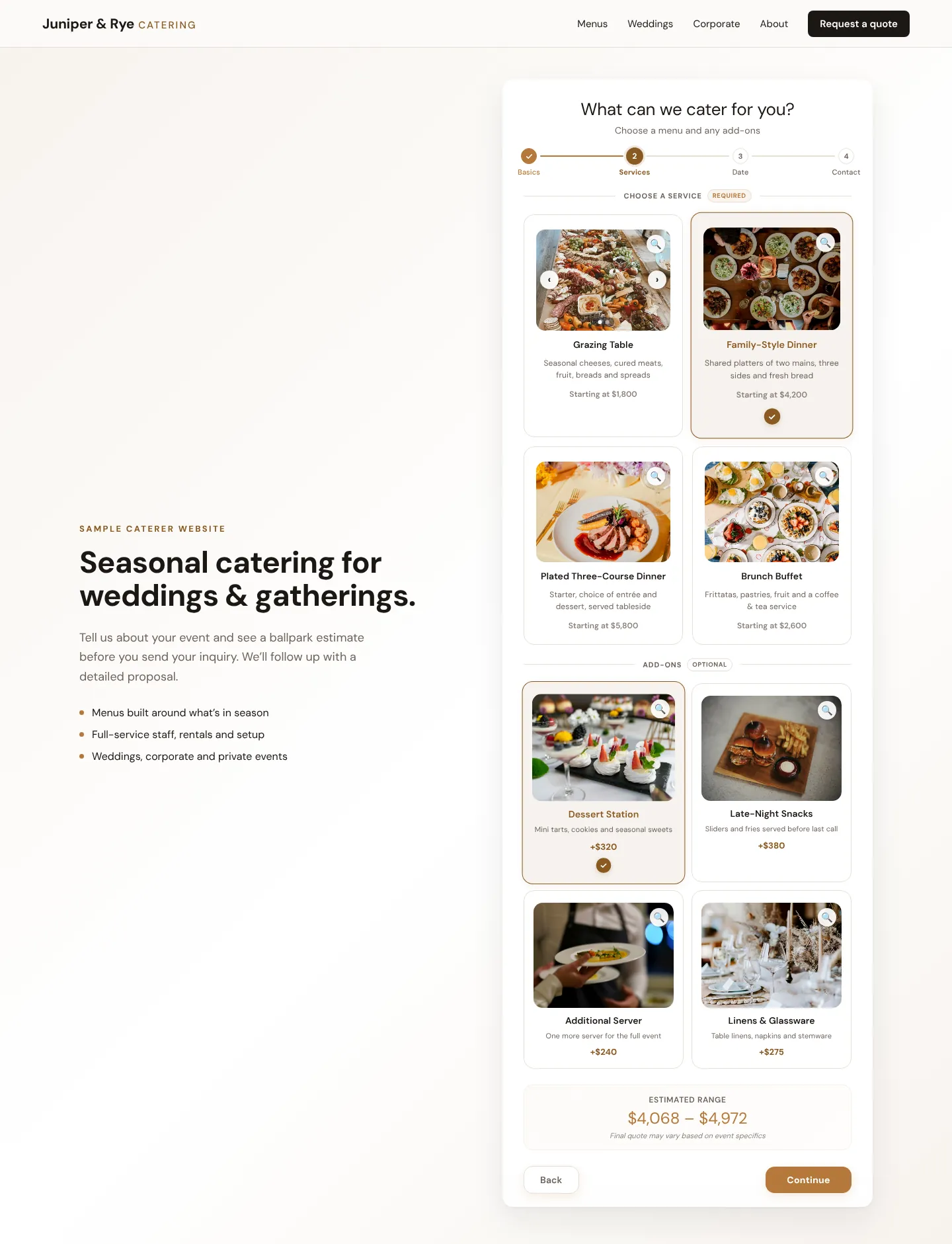
Sample catering inquiry form on a fictional caterer’s website, on the services step: four menu cards and four add-on cards, each topped with the photo the caterer uploaded (the first card has arrows for more photos), with prices, two selections, and an estimated price range above the Continue button.
A Crema inquiry form, embedded on a fictional caterer’s site. Each menu and add-on shows the photo the caterer uploaded for it, and the estimate updates as the visitor picks options; menus, prices and photos are illustrative.

Built for event work

What the inquiry form collects and does

The form is built from your own catalog, event types, and calendar. You choose which steps appear and add questions of your own.

The event details, in a few short steps

Out of the box the form asks for: event type, service hours, estimated guest count, event date, start and end time, additional days for multi-day events, event address and venue name, services and add-ons, notes, how the client heard about you, and name, email, phone, and company.

A photo for every service and add-on

Upload photos for each service and add-on in your Crema catalog, and the form shows them on its cards beside the description and price. An item with several photos becomes a swipeable carousel, and a visitor can tap any photo to see it full size. Choose large, medium or small cards, a list, or icons, or turn photos off for text-only cards.

Instant estimates, shown your way

Turn pricing on and the form calculates a ballpark from the guests, hours, and items selected, using your catalog prices. Show it as a range or a single estimated price, add “starting at” prices to service cards, or keep pricing off. Estimates are labelled as subject to your final quote.

Availability rules on the date step

Set blackout dates, a maximum number of events per day, and a buffer between bookings. The form checks each requested date against your confirmed events, and you decide whether an unavailable date stops the request or is declined automatically with an email.

Paste once, publish changes from Crema

Edits you make in Crema stay in draft until you click Publish; the published version then loads on your website without editing the site again. Match the form to your brand with a color palette, an accent color, and a font of its own.

Every submission becomes a lead

Each request arrives in your Leads pipeline with all of its answers, and you get an inquiry email. Rules you set can prepare suggested quote drafts, and a travel fee for the venue’s area can be added to the quote automatically.

See the full catering CRM

A repeatable process

Setting up the form in Crema

Most of the setup reuses work you already do in Crema: your service catalog, your event types, and your calendar.

  1. Build your catalog

    Add services and add-ons under Admin → Services with their pricing method, descriptions, and photos. The form and the quote builder read the same catalog, so a price change applies to both.

  2. Choose steps and questions

    Turn steps on or off, list your event types, add custom questions, and choose how pricing is displayed. A live preview shows the form as clients will see it.

  3. Set availability and replies

    Add blackout dates and capacity limits, write the confirmation message, and choose what the client receives by email. You can also offer an optional step where the client books a call with your team.

  4. Embed, publish, and test

    Copy the embed code to your website and click Publish. Send a test submission from the preview to confirm it lands as a lead. If you run Google Ads, the form can report submissions and paid bookings as conversions.

Straight answers

Catering inquiry form questions

What does Crema’s catering inquiry form ask clients?

It covers the details most event quotes depend on: event type, date and times, estimated guest count, location, the services wanted, and contact information. Guest counts are collected as an estimate for your team to confirm in the quote, and the start and end times describe the service window, so setup timing or venue access can go in the notes field or a custom question.

Can I customize the questions?

Yes. Choose which built-in steps appear, set your own list of event types, and add custom steps with text, number, dropdown, checkbox, yes/no, or date fields. The event types you list also become the event-type options across Crema.

Can I put the form on my existing website?

Yes. Crema gives you an iframe embed snippet to paste wherever your website builder accepts custom HTML or embed code. It can resize to fit its content or use a fixed width and height. Form changes are then published from Crema, so the snippet stays the same.

Do clients see prices on the form?

Only if you turn pricing on. You can show an estimated range, a single estimated price, or nothing, and choose whether service cards show starting prices. Estimates come from your catalog pricing and are labelled as subject to the final quote.

What happens after someone submits?

The request becomes a lead in your pipeline and you receive an inquiry email. The client sees your confirmation message and, depending on your settings, receives an acknowledgment, an emailed estimate, or a link to a bookable quote. If Square is connected and online checkout is on for the form, a client with a bookable quote can pay the deposit right away.